
Connecting Your AI Client to Gatekeeper
Connecting a service tells Gatekeeper what your agent may reach. This step tells your agent to go through Gatekeeper in the first place.
It's the step that makes everything else real. Until your AI client points at your gateway, your policies and audit log have nothing to govern.
What you need
- A Gatekeeper account at https://app.gatekeeper.station70.com/
- At least one service already connected
- An AI client that supports the Model Context Protocol — Claude, Cursor, Codex, Microsoft Copilot, or any agent framework with MCP support
Finding your gateway URL
Go to Agents → Connect Agents. Your organization has its own unique gateway address, shown there with a copy control. It looks like this:
https://<your-organization-id>.gw.gatekeeper.station70.com/mcp
The identifier is specific to your organization. Don't copy a gateway URL from documentation, a colleague's setup, or another environment — it won't authenticate, and if it did, it would apply the wrong organization's policies.
If your organization runs more than one gateway — a production environment and a sandbox, for example — check which one you've been given before configuring anything. The URLs look nearly identical and the failure mode is confusing: everything appears to work, but against the wrong environment.
Configuring your client
In your AI client, add Gatekeeper as an MCP server using your gateway URL. The exact steps vary by client, but the shape is the same: a server name of your choosing, and the gateway URL as the endpoint. In Claude, that's Settings → Connectors → Add custom connector.
You'll be asked to sign in. Authentication runs through your organization's identity provider, so you use your normal work credentials — the same account you use for the Gatekeeper dashboard.
Once connected, your client discovers the available tools through Gatekeeper. From the agent's point of view, the tools look and behave exactly as they would connecting to each service directly. The difference is invisible to the agent, which is the point.
The Connect Agents page shows a live connection status while it waits for your first request, so you can confirm the client is through without leaving the page.
Remove your direct connections
This is the step people skip, and skipping it undoes the whole setup.
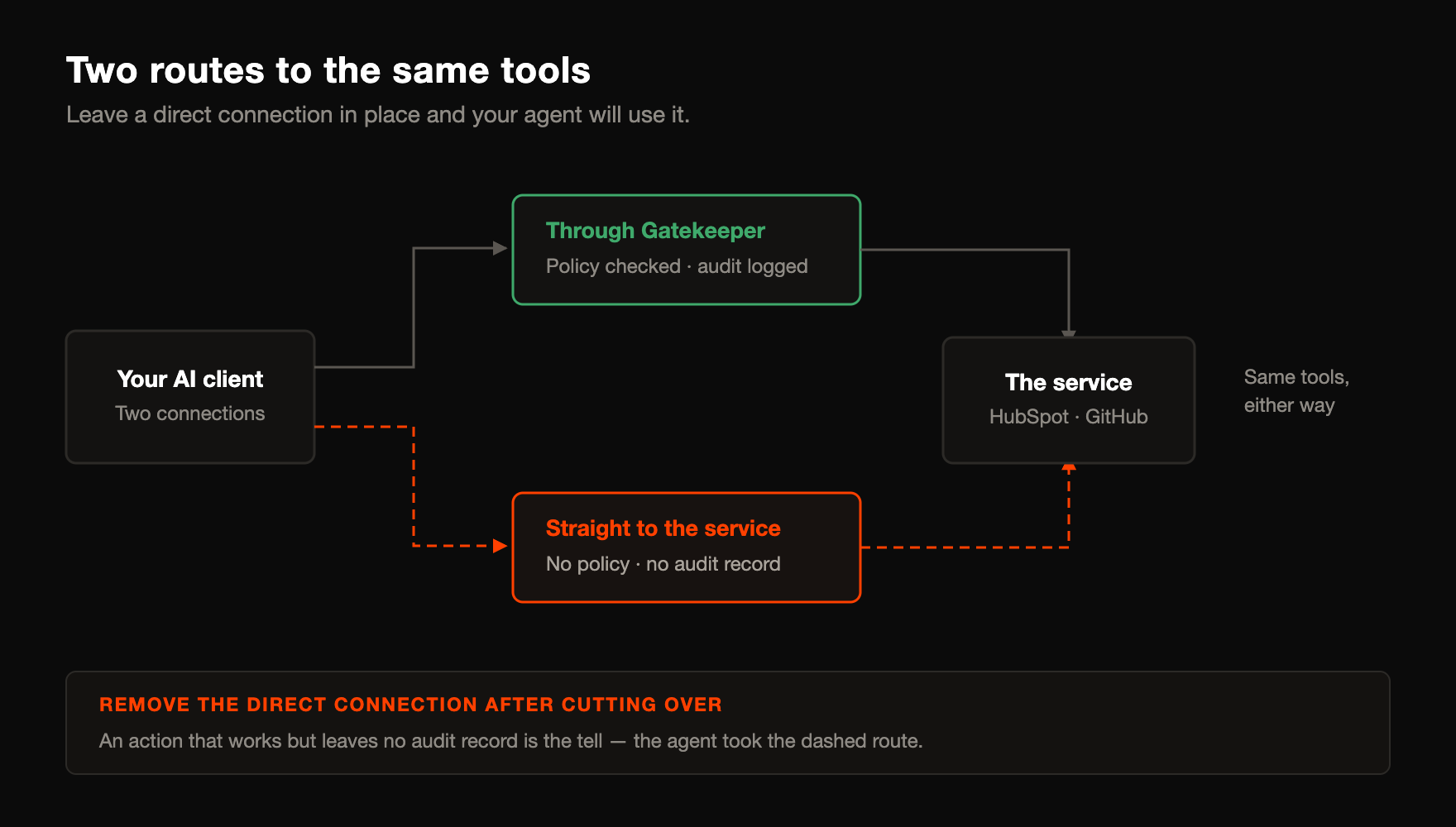
If your AI client still has a direct connection to HubSpot, GitHub, Slack or any other service alongside the Gatekeeper connection, your agent has two routes to the same tools. It will use the direct one — and that route has no policy checks and writes nothing to your audit log.
After confirming Gatekeeper works, remove the direct connection for every service you've routed through the gateway. Then confirm your agent can still do its job, since it should now be going through Gatekeeper for everything.
Why sign-in matters
Because you authenticate as yourself rather than as a shared application, every request carries your identity through to the policy engine and the audit log. That's what makes two things possible:
- Per-person policies. Rules can apply to specific people, not just to services.
- Attributable audit records. Every action traces to the individual whose session made it, grouped by session so a related run of actions can be reviewed together.
If your whole team shares one connection, you lose both. Each person should connect with their own account.
For an agent that runs with no person present — a CI job or a scheduled task — use a bot instead of sharing someone's connection. See Setting Up a Bot.
If a service restricts access by IP
Some services allow inbound API traffic only from approved addresses. Because calls now originate from Gatekeeper rather than from your own network, those allowlists need Gatekeeper's outbound addresses.
You'll find them on the Agents → Connect Agents page under Show outgoing IPs. Hand the full list to whoever manages the restriction — Auth0 IP restrictions, GitHub OAuth IP filters, firewall rules and similar. Some addresses are reserved spares held for future capacity; allowlisting all of them up front avoids a second request later.
Verifying it works
- Ask your agent to do something simple and read-only — look up a contact, list a repository, search for a record.
- Open Activity.
- Confirm the action appears, showing the service, the tool, the parameters submitted, and the outcome.
If the action succeeded but nothing appears, your agent almost certainly used a leftover direct connection. Go back and remove it.
Common problems
The client connects but sees no tools. Usually means no service is connected yet, or the connected services have no tools enabled. Check your Services list — see Connection Types.
Sign-in fails. Confirm you're using the gateway URL for the right environment, and that your account has access to that Gatekeeper organization.
Some tools are missing. Administrators can enable and disable individual tools per service, so a missing tool is often deliberate rather than broken. This isn't a policy denial — a disabled tool doesn't appear at all.